
- Faculty Undergoing Review
- Start > Submission (instructions, tutorial videos, AY26-27 information)
- Dossier Sections (overview information and instructions)
- What will reviewers see and how will they know what to review?
- Faculty as Viewers/Reviewers
- Faculty Roles (faculty who are under review; viewer or reviewer role and where to find your assigned reviews)
- Dossier Documents (instructions)
- Things to keep in mind when you review dossiers for AY26-27
Are you a faculty going under review in AY26-27? You can also read through the "faculty undergoing review" Elements information below in a downloadable word document format.
Major Reviews Process
Elements is being used to manage the review process including digitizing faculty dossiers and providing one system for UO reviewers to use to look at files. Elements is NOT being used to introduce new metrics or quantified assessments into reviews. All processes are dictated by the United Academics CBA and all evaluation standards are based on unit policy.
Starting Your Assigned Review Dossier
While each review will have different dossier components, accessing and starting each review/dossier is the same for all faculty (Pro Tem, tenure track faculty, career instructional faculty, or career research faculty).
Watch the AY26-27 major reviews in Elements faculty training video
Watch a general video on starting your review dossier tutorial video
Access Your Dossier
- Log in to the system: https://uo.elements.symplectic.org/
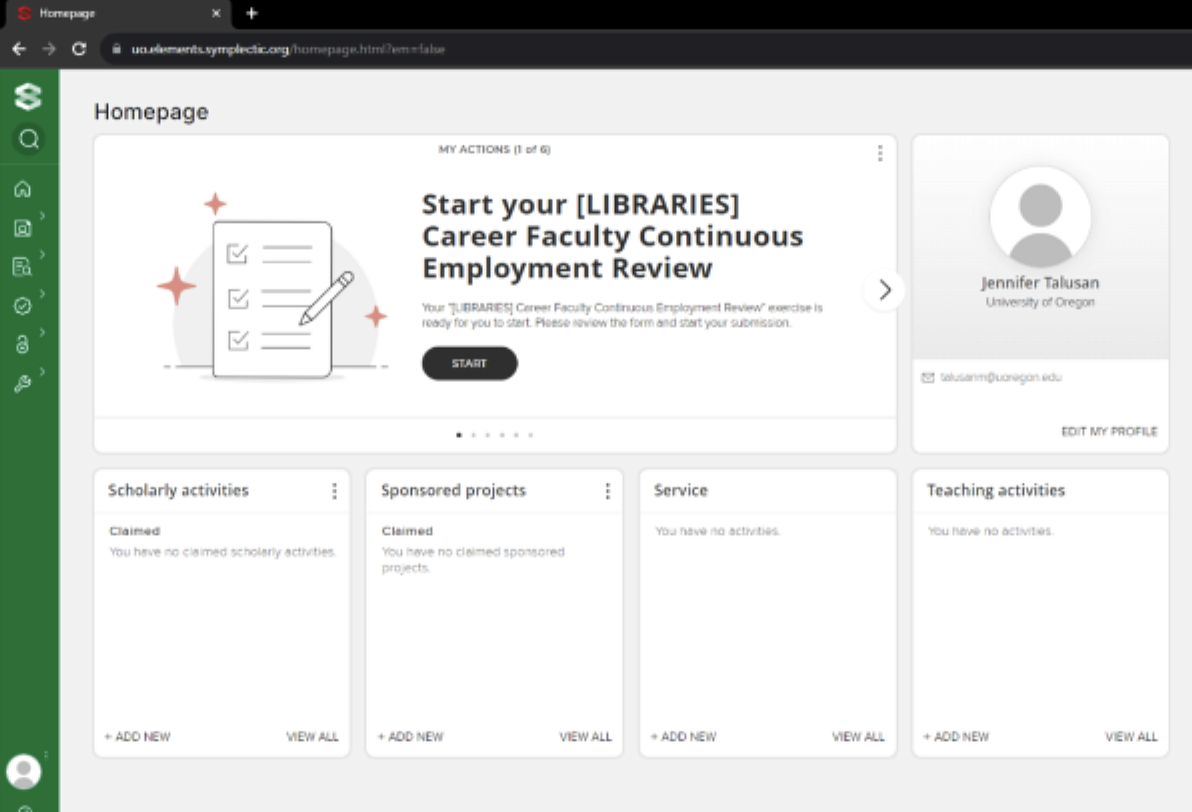
- On your homepage, under My Actions, find the review card and click the START button next to your review.
- Alternatively, you move your mouse to the left-hand menu, go to evaluation and review, go to my submissions and review processes. Both of these options will take you to your dossier to get started.
Dossier Sections
- Watch a tutorial on interacting with the dossier sections and learn how to engage with the activity sections (including editing records and adding attachments).
- The introduction is the first page of each dossier that contains relevant information and process instructions pertaining to that specific review.
- Read through the instructions in the blue box, then click NEXT, which is located above the blue text box on the right side.
- Alternatively, you can click the Overview tab on the left side.
- Overview: The overview lists all the components that are in the dossier and allows you to click into that page by clicking on the > symbol to the right. Once you have clicked into the page, you can upload appropriate documents by clicking the + symbol.
CV
Faculty can upload a version of their own CV in their dossier. We strongly encourage faculty to complete their profile and activity in Elements so that the activity sections below will auto-populate with their work. However, reviewers will have access to their CV in addition to their activity.
Scholarly Activity
For 2026-2027 reviews, activity sections will be present in faculty dossiers for those in CAS, LCB, KCASI, Law, COE, Ballmer, and Libraries. Activity sections will be optional or not included for those in Design, OVPRI, SOMD, SOJC, MNCH, and PERC. These activity sections pull from the four core areas of your Elements profile. Some data is pulled from outside or UO sources. Some content will need to be added by the faculty member. Read through our scholarly activity guidance and support page for help. Training videos and step-by-step instructions are included.
Autopopulation of activity list: When a faculty member starts their dossier, they will be shown a pre-populated list of activities. These are pulled from the profile/activity side of the Elements system and are suggested items for you to add to your dossier. The dates used are typically June 1 of the start of the review period through June 5 of the end of the period (unless otherwise stated in the exercise, in the unit policy, or communicated from support staff/associate deans/unit heads/supervisors). Faculty should look over the autopopulated activity list and select the "add all" button (a + sign). Faculty can remove anything by hitting remove. If, after adding the activity, a faculty wants to edit and add more information to an entry or item, they can do so. Once a review dossier is submitted, faculty cannot add anything to it and the autopopulated list does not update. We encourage faculty to be certain of their dossier before hitting submit. However, we know for some major reviews that take a year or more to go through the process will likely require a revision to the dossier. To submit a revision to the dossier/CV, faculty need to write up the entry or copy it from Elements. This revision should be signed/dated and provided to the relevant support staff for inclusion in the dossier at the appropriate stage.
Data Elements labels as "non review period" scholarly activity: To be used by faculty to include activity in the formal review period that is not automatically picked up by Elements and they would still like reviewers to know about. Note, however, that scholarly publications (etc.) cannot be counted in more than one review period.
Dates used by Elements for activity lists: The Elements system is pre-set to pull activity over using June 1, STARTING REVIEW YEAR through June 1, ENDING REVIEW YEAR. For example, June 1, 2021 through June 1, 2027 (for a typical six year period for promotion and tenure). Your review period is dictated by the CBA, university policy, and unit policy. Though the review period is used for the initial auto-population of the activity list, once a faculty member has added activities to their dossier, you will need to use the + button to add any new entries. Once a faculty member submits their dossier, they will need to give their support staff an addendum wtih any new additions.
Contextual documents: If you have a contextual document to add to the activity section, you can select the "+" sign and upload a PDF. A good example would be a statement by the faculty member explaining how a change in the federal government impacted their funding opportunities. Other materials, such as sample documents, can be included in the supplemental dossier.
Sponsored Project Activity
For 2026-2027 reviews, activity sections will be present in faculty dossiers for those in CAS, LCB, KCASI, Law, COE, Ballmer, and Libraries. Activity sections will be optional or not included for those in Design, OVPRI, SOMD, SOJC, MNCH, and PERC. These activity sections pull from the four core areas of your Elements profile. Some data is pulled from outside or UO sources. Some content will need to be added by the faculty member. Read through our sponsored project guidance and support page for help. Training videos and step-by-step instructions are included.
Autopopulation of activity list: When a faculty member starts their dossier, they will be shown a pre-populated list of activities. These are pulled from the profile/activity side of the Elements system and are suggested items for you to add to your dossier. The dates used are typically June 1 of the start of the review period through June 5 of the end of the period (unless otherwise stated in the exercise, in the unit policy, or communicated from support staff/associate deans/unit heads/supervisors). Faculty should look over the autopopulated activity list and select the "add all" button (a + sign). Faculty can remove anything by hitting remove. If, after adding the activity, a faculty wants to edit and add more information to an entry or item, they can do so. Once a review dossier is submitted, faculty cannot add anything to it and the autopopulated list does not update. We encourage faculty to be certain of their dossier before hitting submit. However, we know for some major reviews that take a year or more to go through the process will likely require a revision to the dossier. To submit a revision to the dossier/CV, faculty need to write up the entry or copy it from Elements. This revision should be signed/dated and provided to the relevant support staff for inclusion in the dossier at the appropriate stage.
Data Elements labels as "non review period" sponsored project activity: To be used by faculty to include activity in the formal review period that is not automatically picked up by Elements and they would still like reviewers to know about. These grey areas are on a case-by-case basis and faculty should discuss with their unit head so they are not double counting their work. Though the review period is used for the initial auto-population of the activity list, once a faculty member has added activities to their dossier, you will need to use the + button to add any new entries. Once a faculty member submits their dossier, they will need to give their support staff an addendum wtih any new additions.
Dates used by Elements for activity lists: The Elements system is pre-set to pull activity over using June 1, STARTING REVIEW YEAR through June 1, ENDING REVIEW YEAR. For example, June 1, 2021 through June 1, 2027 (for a typical six year period for promotion and tenure). Your review period is dictated by the CBA, university policy, and unit policy.
Contextual documents: If you have a contextual document to add to the activity section, you can select the "+" sign and upload a PDF. A good example would be a statement by the faculty member explaining how a change in the federal government impacted their funding opportunities. Other materials, such as sample documents, can be included in the supplemental dossier.
Teaching Activity
For 2026-2027 reviews, activity sections will be present in faculty dossiers for those in CAS, LCB, KCASI, Law, COE, Ballmer, and Libraries. Activity sections will be optional or not included for those in Design, OVPRI, SOMD, SOJC, MNCH, and PERC. These activity sections pull from the four core areas of your Elements profile. Some data is pulled from outside or UO sources. Some content will need to be added by the faculty member. Read through our teaching activity guidance and support page for help. Training videos and step-by-step instructions are included.
Autopopulation of activity list: When a faculty member starts their dossier, they will be shown a pre-populated list of activities. These are pulled from the profile/activity side of the Elements system and are suggested items for you to add to your dossier. The dates used are typically June 1 of the start of the review period through June 5 of the end of the period (unless otherwise stated in the exercise, in the unit policy, or communicated from support staff/associate deans/unit heads/supervisors). Faculty should look over the autopopulated activity list and select the "add all" button (a + sign). Faculty can remove anything by hitting remove. If, after adding the activity, a faculty wants to edit and add more information to an entry or item, they can do so. Once a review dossier is submitted, faculty cannot add anything to it and the autopopulated list does not update. We encourage faculty to be certain of their dossier before hitting submit. However, we know for some major reviews that take a year or more to go through the process will likely require a revision to the dossier. To submit a revision to the dossier/CV, faculty need to write up the entry or copy it from Elements. This revision should be signed/dated and provided to the relevant support staff for inclusion in the dossier at the appropriate stage.
Dates used by Elements for activity lists: The Elements system is pre-set to pull activity over using June 1, STARTING REVIEW YEAR through June 1, ENDING REVIEW YEAR. For example, June 1, 2021 through June 1, 2027 (for a typical six year period for promotion and tenure). Your review period is dictated by the CBA, university policy, and unit policy. Though the review period is used for the initial auto-population of the activity list, once a faculty member has added activities to their dossier, you will need to use the + button to add any new entries. Once a faculty member submits their dossier, they will need to give their support staff an addendum wtih any new additions.
Contextual documents: If you have a contextual document to add to the activity section, you can select the "+" sign and upload a PDF. A good example would be a statement by the faculty member explaining how a change in the federal government impacted their funding opportunities. Other materials, such as sample documents, can be included in the supplemental dossier.
Teaching Summary Report: An automatic list you can generate from Elements to show your teaching by academic year and then edit to indicate if your course was peer reviewed, revised, a LWOP or sabbatical took place, etc. Watch a quick tutorial on how to generate this teaching summary report.
Service Activity
For 2026-2027 reviews, activity sections will be present in faculty dossiers for those in CAS, LCB, KCASI, Law, COE, Ballmer, and Libraries. Activity sections will be optional or not included for those in Design, OVPRI, SOMD, SOJC, MNCH, and PERC. These activity sections pull from the four core areas of your Elements profile. Some data is pulled from outside or UO sources. Some content will need to be added by the faculty member. Read through our sponsored project guidance and support page for help. Training videos and step-by-step instructions are included.
Service activity is mostly manual and for AY26-27, faculty can choose to only list their service activity on their CV. However, we strongly encourage faculty to include their service work in their Elements profile.
Autopopulation of activity list: When a faculty member starts their dossier, they will be shown a pre-populated list of activities. These are pulled from the profile/activity side of the Elements system and are suggested items for you to add to your dossier. The dates used are typically June 1 of the start of the review period through June 5 of the end of the period (unless otherwise stated in the exercise, in the unit policy, or communicated from support staff/associate deans/unit heads/supervisors). Faculty should look over the autopopulated activity list and select the "add all" button (a + sign). Faculty can remove anything by hitting remove. If, after adding the activity, a faculty wants to edit and add more information to an entry or item, they can do so. Once a review dossier is submitted, faculty cannot add anything to it and the autopopulated list does not update. We encourage faculty to be certain of their dossier before hitting submit. However, we know for some major reviews that take a year or more to go through the process will likely require a revision to the dossier. To submit a revision to the dossier/CV, faculty need to write up the entry or copy it from Elements. This revision should be signed/dated and provided to the relevant support staff for inclusion in the dossier at the appropriate stage.
Data Elements labels as "non review period" service activity: To be used by faculty member to include something in the formal review period that is not automatically picked up by Elements and they would still like reviewers to know about. These grey areas are on a case-by-case basis and faculty should discuss with their unit head so they are not double counting their work.
Dates used by Elements for activity lists: The Elements system is pre-set to pull activity over using June 1, STARTING REVIEW YEAR through June 1, ENDING REVIEW YEAR. For example, June 1, 2021 through June 1, 2027 (for a typical six year period for promotion and tenure). Your review period is dictated by the CBA, university policy, and unit policy. Though the review period is used for the initial auto-population of the activity list, once a faculty member has added activities to their dossier, you will need to use the + button to add any new entries. Once a faculty member submits their dossier, they will need to give their support staff an addendum wtih any new additions.
Contextual documents: If you have a contextual document to add to the activity section, you can select the "+" sign and upload a PDF. A good example would be a statement by the faculty member explaining how a change in the federal government impacted their funding opportunities. Other materials, such as sample documents, can be included in the supplemental dossier.
Awards
Faculty can include awards on their CV, enter awards into the appropriate activity section in Elements, or create and upload a separate document into the Awards section of their dossier. Prize/award is an activity type in sponsored projects, which is commonly used for prestigious awards faculty receive during their careers. Faculty can also include teaching and service awards in the teaching and service activity sections of their Elements profile. Our guidance pages help clarify where to put content.
Candidate Statement
Faculty create and upload a document with their candidate statement. Follow the instructions in your dossier.
Dept/Unit Criteria (review and promotion policy)
Faculty include their unit's review and promotion policy link. Follow the instructions in your dossier.
Supplementary Dossier
Faculty can include their supplemental documents as attachments in this section of their dossier.
Continuing and Submitting Your Dossier
Watch a tutorial video on continuing and submitting your dossier
Access Your Dossier Again
- Log in to the system.
- On your homepage, under My Actions, click the Continue button next to your review.
- You can start/stop working on your dossier anytime.
Navigate and Review Progress
- Use the Overview tab to see where attachments have been added and which sections still need work.
- Use the Next/Previous arrows or the left-hand menu to move between sections.
Complete Dossier Sections
- Activity Sections: Follow blue box instructions or consult support staff.
- Awards: Upload a PDF if required.
- Candidate Statement: Ensure it’s uploaded.
- Letter of Waiver: Upload the appropriate document.
Upload Required Documents & Activity Sections
- Locate the desired section (e.g., CV)
- Click the plus (+) button to add the required document.
- Drag and drop a PDF or click Browse to upload.
- Click Save and use the eyeball icon to preview the uploaded file.
- Review a downloadable word document with guidance on reducing file sizes and solving upload issues.
- For activity sections, look over the autopopulated list of activities and hit the (+) button to add all of the items. If you want to remove anything, hit the "remove" button.
- Faculty can edit activity lists and items as they work on their dossier.
- Activity lists are autopopulated from the activity and profile side of the Elements system. We encourage faculty to ensure completeness to their activity and profile before they work on their dossier. This ensured you only enter content once and can pull it over into an autopopulated list in your dossier.
Add Department/Unit Criteria Link
- Go to Department and Unit Promotion and Tenure Criteria.
- Click the blue button to find your department’s policy.
- Copy the link and click the plus (+) button to paste it.
- Check for a valid link (✅) or broken link (❌).
- Click Save and Exit.
Supplementary Dossier (Optional)
- Upload additional documents if applicable.
- Skip this section if not relevant.
Final Review and Submission
- Use the Overview tab to double-check your dossier.
- Click Submit when ready.
- Read the blue confirmation box.
- Check the box to confirm your submission.
- Click Confirm to finalize.
- Once a dosiser is submitted, faculty can no longer access it or add material.
Completion
- Your dossier is now submitted and moves to the Support Staff phase.
What will reviewers see and how will they know what to review?
- UO reviewers, like those on a personnel committee or your unit head, will see the same format and material that the faculty member does in Elements.
- Components required in the dossier for every review are dictated by the CBA, university policy, and unit policy. Elements is the tool we use to create the dossier and share it with reviewers.
- Reviewers are given instructions in the Elements system to help them read your dossier and understand the material provided. Instead of creating guidance documents to teaching reviewers how to engage with Elements, the system has section-by-section instructions and help text for reviewers. Faculty who are putting their dossier together will only see instructions and help text applicable to them. Other information will be available to reviewers based on their role. For example, personnel committees receive their instructions when they review your dossier and deans receive their instructions when it is their turn to complete a review.
- Reviewers still use unit policy to evaluate faculty work. Elements does not change review criteria.
Faculty Roles: Submissions, Viewer, Reviewer
Are you serving on a personnel committee this academic year? Are you a faculty member who has to review someone’s dossier and vote? Are you a unit head or supervisor? Are you an associate dean, dean, or similar?
You can download a word document version of the information below for faculty as viewers/reviewers for AY26-27 information.
You will be assigned a role in Elements by your support staff. Depending on the work you have to do as part of the review process, then you may have different roles. Please follow instructions from your personnel support staff as internal processes for schools, colleges, and academic/research units vary. This can include how you review and vote on a dossier or who is assigned to upload a committee report.
Watch a tutorial video on faculty roles in Elements
Submissions Role
If you are going up for a review, you will find that under ‘My Submissions’.
- Navigate to 'Evaluation and Review' in the left-hand menu.
- Click on 'My Submissions'.
- Expand 'Review Processes' to see your assigned major review.
- Click 'Start' to begin the review activity.
Viewer Role
Watch Faculty as Viewers Tutorial Video
As a viewer, your role is less active than that of a reviewer. Some units will use this role instead of reviewer if they want to give all of their faculty the opportunity to look at a particular case file. Viewers will read a case file but will not be asked to take any actions.
- Navigate to 'Evaluation and Review' in the left-hand menu.
- Click on 'Viewable Exercises'.
- Expand 'Review Processes' to see dossiers you can view.
- Click 'View' to access the dossier.
- Review documents without uploading or submitting content.
Looking at the dossier:
- Committee dossier cheat sheet
- Watch a tutorial on how to interact with a dossier in Elements
- Click on each section to look at the contents. There will often be attachments that you can select from and look at.
- You may have to scroll in a section to see all content or attachments.
- If there are PDF uploads, click on the right hand eyeball icon to open the document and review.
- Some documents such as the CV can be downloaded and printed. If there is a download icon (a downward pointing arrow), this means you can download the content. Faculty are responsible for ensuring they download their own documents and that they are using the most recent version of the document for their review.
- There are pale yellow boxes with notes from other reviewers/review stages. Make sure you scroll to see them.
- If there are multiple reviewers who have provided documentation, you will need to locate and select the "Other Reviews" section within each pale yellow box. This will be to the RIGHT hand side of the screen.
- Can't find the supplementary section? Scroll to the very bottom on the left-hand sidebar menu for supplementary documents or keep hitting "next" until you arrive at the last section of the dossier.
- You can open multiple windows/tabs once you are logged into Elements and view multiple documents within a dossier at once. This will support committee discussion practices. There is a 60 minute time out feature.
- You can copy/paste text from the pdf viewer in Elements or you can download and copy/paste text from the PDF directly. This will support those trying to quote external review letters.
Reviewer Role
Watch a faculty as reviewers tutorial video
As a reviewer, you may be chair of a committee or part of a faculty group that is reviewing a particular case file. These assignments can be found in ‘Assigned Reviews.’
- Navigate to 'Evaluation and Review' in the left-hand menu.
- Click on 'Assigned Reviews'.
- Expand 'Review Processes' to view your assigned reviews.
- Click 'View' to see the details of each review.
- Click 'Start' to begin reviewing dossiers that are ready.
Looking at the dossier:
- Committee dossier cheat sheet
- Watch a tutorial on how to interact with a dossier in Elements
- Click on each section to look at the contents.
- You may have to toggle between your Reviewer section and the Reviews from other folks.
- In the Reviews area of a section (the pale yellow box), you may need to click a right/left arrow to navigate the numerous reviews/comments/attachments in that section.
- If there are multiple reviewers who have provided documentation, you will need to locate and select the "Other Reviews" section within each pale yellow box.
- If there are PDF uploads, click on the right hand eyeball icon to open the document and review.
- Some documents such as the CV can be downloaded and printed. If there is a download icon (a downward pointing arrow), this means you can download the content. Faculty are responsible for ensuring they download their own documents and that they are using the most recent version of the document for their review.
- If you want to leave a comment: click directly into the pale yellow box and type. Then, hit "save".
- If you want to edit a comment: hit the "edit" button, make your revisions, and then hit "save".
- Can't find the supplementary section? Scroll to the very bottom on the left-hand sidebar menu for supplementary documents or keep hitting "next" until you arrive at the last section of the dossier.
- You can open multiple windows/tabs once you are logged into Elements and view multiple documents within a dossier at once. This will support committee discussion practices. There is a 60 minute time out.
- You can copy/paste text from the pdf viewer in Elements or directly from the downloaded PDF. This will support those trying to quote external review letters.
Personnel committee chairs: If assigned to do so, you will upload your committee report to the designated area of the dossier (e.g., "Department Personnel Committee Report").
- Navigate to the personnel committee report section of the dossier.
- Scroll slightly until you see a pale yellow box.
- You can upload a PDF of your report in this section and leave notes in the text box.
- Upload (drag and drop a file OR select from your computer files)
- Select your file and hit upload
- Click on the eyeball icon to review the PDF
- Hit Submit in the upper right hand corner.
Dossier Documents
- Committee dossier cheat sheet
- Watch a tutorial on how to interact with a dossier in Elements
- Reviewers/Viewers are able to download some dossier documents. The most important is the faculty CV so that this document can be annotated.
- Some documents cannot be downloaded for security, record-keeping, and privacy purposes. We have now made most documents available to download in order to best support reviewers.
- The entire dossier is unavailable for download as one document.
- If you want to look at multiple documents in the dossier at once, you can Command/click and view documents in a new tab or window. There is a 60 minute inactivity time out.
- You can open multiple windows/tabs once you are logged into Elements and view multiple documents within a dossier at once. This will support committee discussion practices.
- You can copy/paste text from the pdf viewer in Elements or from the downloaded PDF. This will support those trying to quote external review letters.
AY26-27 Reviews: Helpful Information to Keep in Mind
- Watch a tutorial on how to interact with a dossier in Elements
- Some schools/colleges/units are using the activity sections and others are not. CAS, LCB, COE, KCASI, Ballmer, and Libraries are using activity. SOMD, SOJC, Design, PERC, and MNCH are optionally using activity and their dossiers may not have these sections.
- If activity sections are included, please review the information.
- Most faculty will also provide their CV, please review the information.
- Contextual information for each activity section can be uploaded as an attachment in each section. Include in your review.
- Supplemental information can be uploaded as an attachment in the supplemental dossier section. Include in your review.
- Criteria for evaluation has not changed. Refer to unit policy for review and promotion criteria.
- Elements has not created any new categories, activities, or criteria for faculty evaluation. It is the tool we are using to prepare dossiers and perform the review process.
If you have any questions, contact the Office of the Provost or your support staff and they can help you look at your assigned reviews, your assigned viewers, and submissions if you are going up for a review in the academic year.