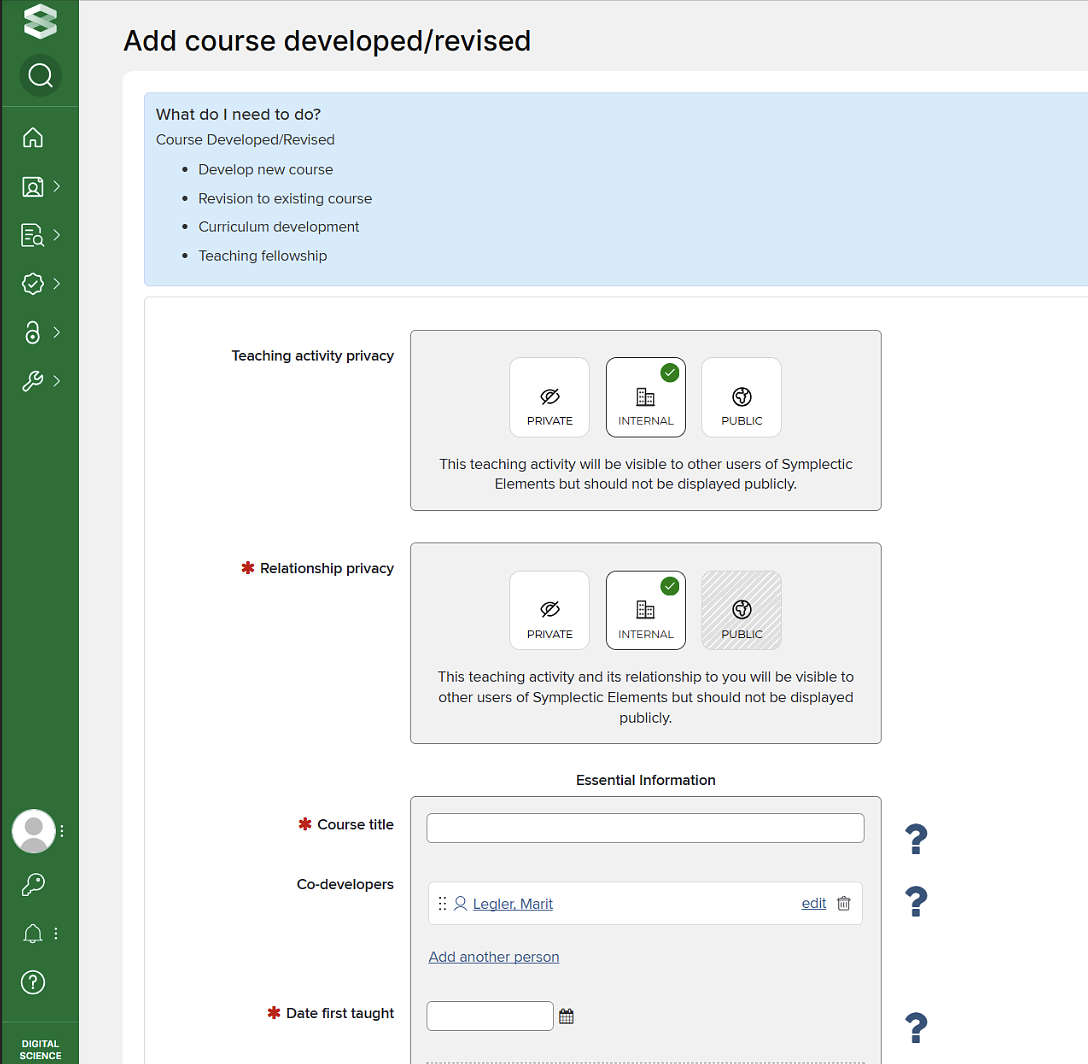
WATCH an Overview Video on Teaching Activity.
Teaching activity data sources:
- Banner (courses taught and degree-based supervision)
- Clark Honors College (research-based supervision)
- Division of Graduate Studies (research-based supervision, graduate examinations)
- CV transcription (CVs provided by units in 2024)
Refer to your unit Review and Promotion policy or discuss placement of teaching activity with your unit head.
Teaching activity types guidance document. PDF will open in another window. Faculty can download this document and keep it on hand.
This guidance was informed by the Elements Academic Advisory group, academic leadership including TEP and UO Online, out-of-the box types in the system, and UO faculty CVs.
Activity Type | Subtype Option | Notes |
|---|---|---|
Courses taught Locked data, cannot edit |
| Submit an IT ticket if data is inaccurate. Can provide clarification in your review dossier. |
Degree supervision Locked data, cannot edit |
| Submit an IT ticket if data is inaccurate. Can provide clarification in your review dossier. |
Course Developed or Revised Unlocked data, cannot edit |
|
|
Research supervision Unlocked data, can edit |
|
|
Graduate examination Unlocked data, can edit |
|
|
Clinical Supervision and Teaching |
|
|
Program Developed |
|
|
Mentoring |
|
|
Other Teaching |
|
|
Non-UO Teaching |
|
|
WATCH the Reviewing Your Teaching Activity tutorial video
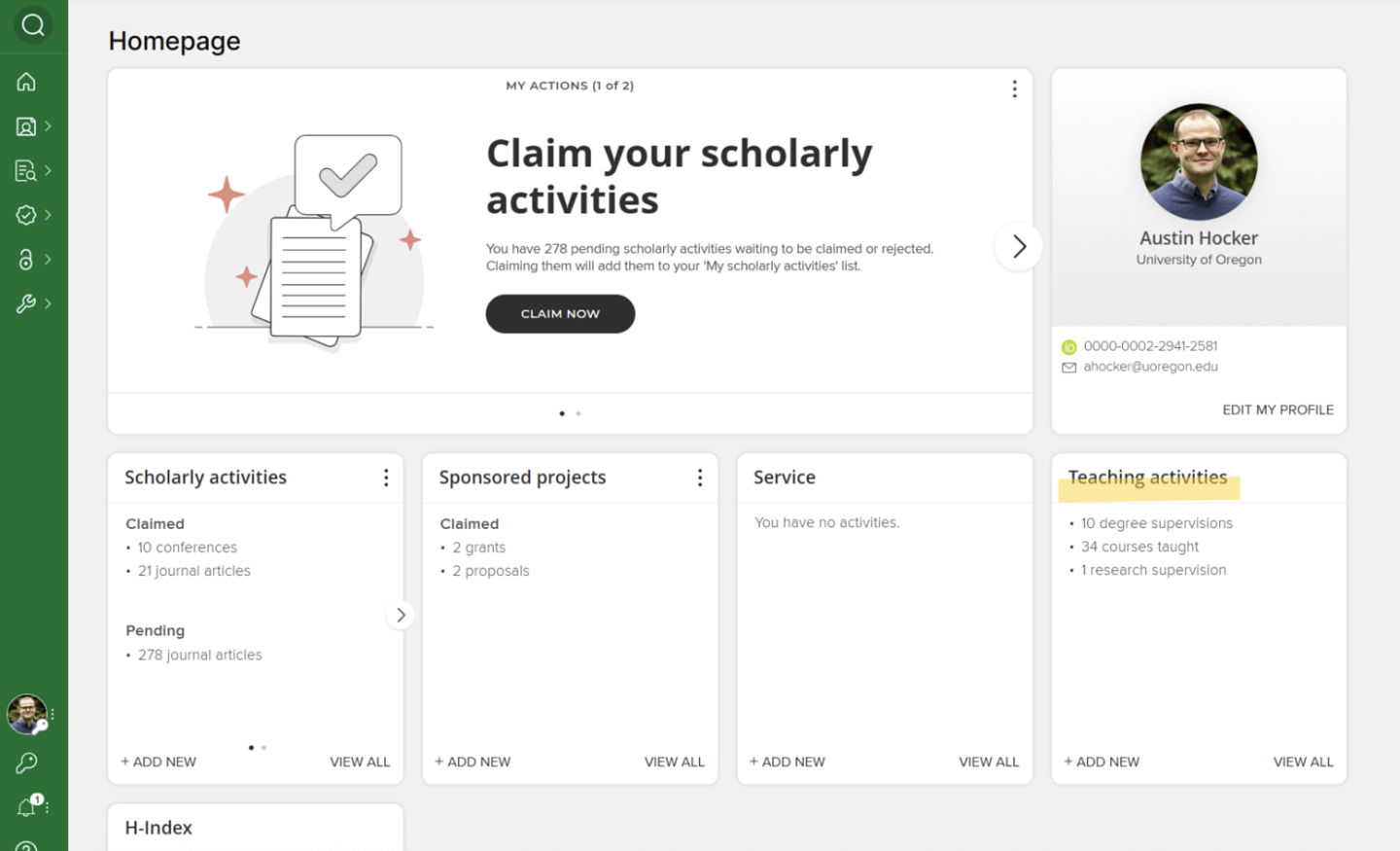
Teaching Activities are coming into Elements via an automated internal data feed that is updated every term. Please review your Teaching Activities periodically to ensure they are correct and complete. You can view a record by clicking on it. Then, click on the dots in the right corner of the record to view details.
WATCH a brief video on Editing Your Teaching Activities.
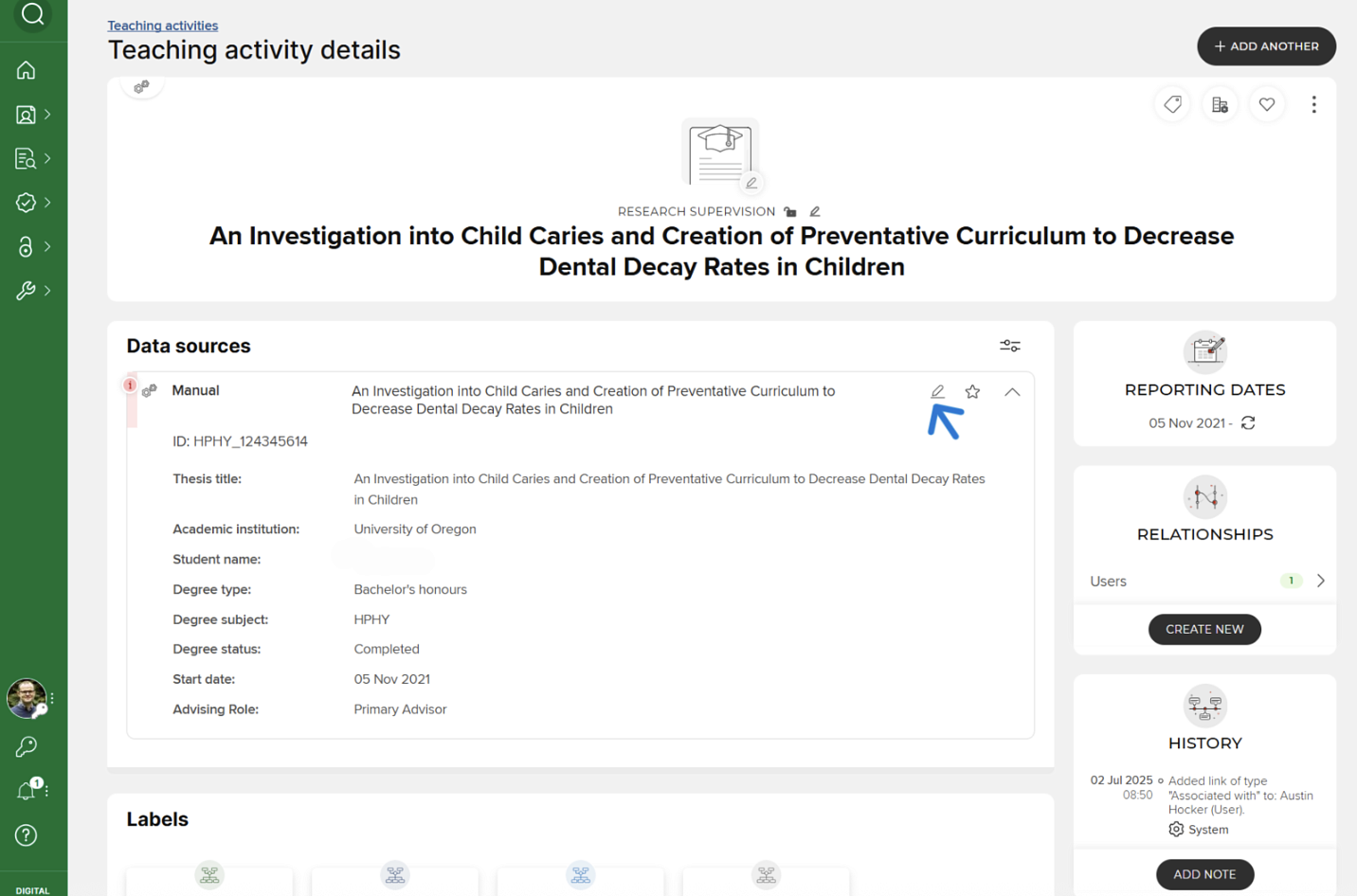
Teaching Activities are coming into Elements via an automated internal data feed that is updated every term. Only Research Supervision and Graduate Examination records can be edited. Note: Courses taught and Course-based degree supervision records are locked. If you believe any of the locked records need editing, please use the Elements IT ticket process to do so.
- Click on the three dots in the right-hand corner of the record you wish to edit and select “View Details.”
- Then click on the pencil symbol in the top right corner to edit.
WATCH a short video on Adding Teaching Activities.
You may wish to add teaching activities from your CV that were not automatically imported into Elements by the internal teaching feed. You can use the AI Assist tool to expedite the addition of new entries in Elements or you can use the manual entry option to add content.
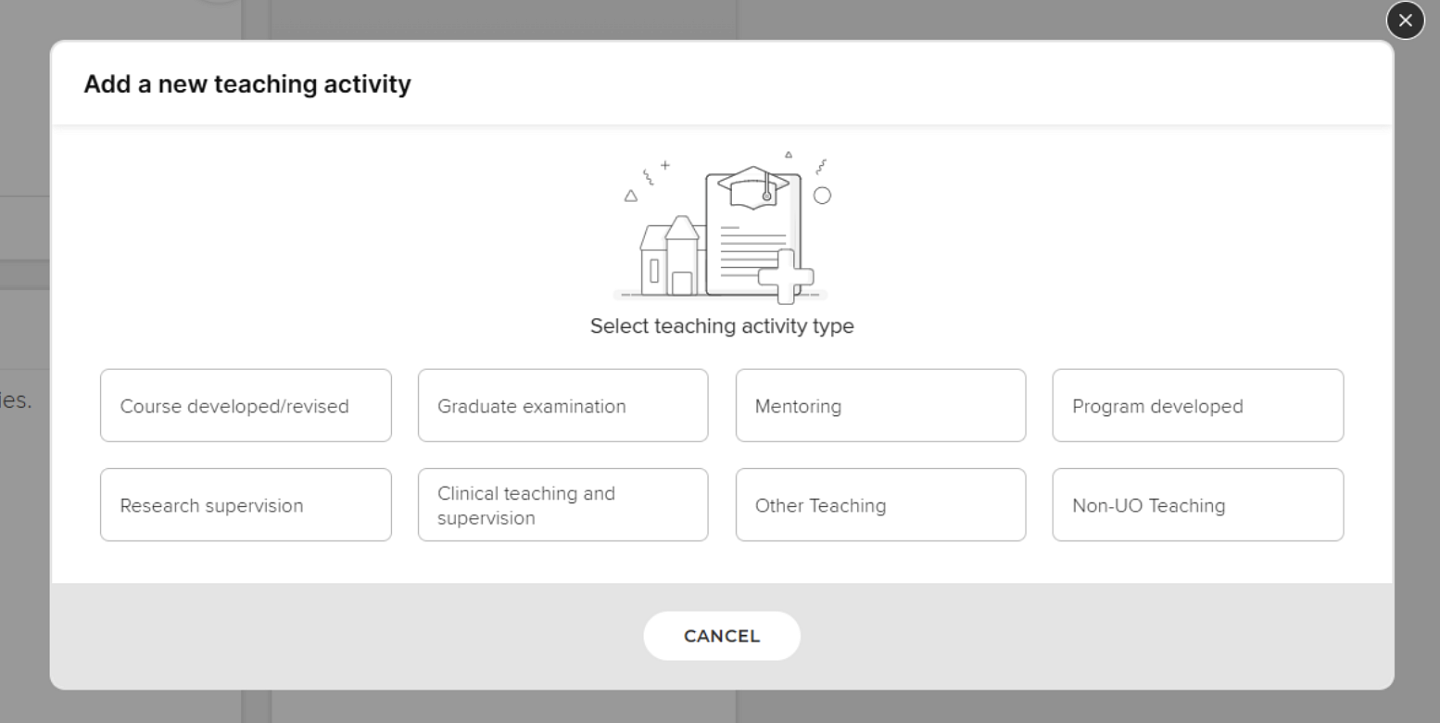
- Go to the Teaching activities box on your homepage, select +ADD NEW and select the Teaching activity type you wish to add.
- If using the AI assist tool, you can load in ONE entry at a time from your CV or website. Cut/paste directly into the provided box and follow the on screen instructions.
- Labels, descriptions, abstracts, keywords, and notes can be used to clarify each activity.
- Complete all of the necessary information in the form and click SAVE.