
WATCH an Overview Video on Scholarly Activities.
Scholarly activity data sources:
- Databases (researcher identifiers from UO Libraries)
- ArXiv, CiNii EN, CiNii JP, Crossref, DBLP, Dimensions, Europe PubMed, fighare, ORCiD, PubMed, RePEc, SSRN, Web of Science
- CV transcription (CVs provided by units in 2024)
The following table includes possible accomplishments faculty members can add to their Elements profile. This guidance was informed by the Elements Academic Advisory group, academic leadership, out-of-the box types in the system, and UO faculty CVs.
Scholarly and creative activity types guidance document. PDF will open in another window. Faculty can download this document and keep on hand.
A reminder to faculty to consult with their unit head or supervisor if they are unsure of how their work is reviewed according to unit policy. Unit review and promotion policies.
Scholarly Activity Type | Subtype options | Notes |
|---|---|---|
Abstract |
| Database entries will often reflect abstracts as accepted by default. |
Book |
|
|
Chapter |
| Can indicate editorship under “relationship”. Relationships can be made private (faculty/supervisor or unit head), internal (UO faculty, supervisors, unit heads, admin), or public. |
Conference |
| Can indicate invited. For non-conference presentations, use Presentation activity type. |
Composition |
| Compositional work unique to your field. May be considered in another activity type. See unit policy. |
Datasets and Open Source |
| See unit policy for how your work is evaluated. Some units may place teaching/communication publications in another activity type. |
Figure |
| Can describe figure or output when entering activity. |
Exhibitions, Installations, and Designs |
| Can indicate solo, collaborative. |
Instructional Material |
|
|
Intellectual Property |
|
|
Journal Article |
| For Law, professional or trade journal is a separate activity type. |
Media and Press |
| Can indicate if faculty produced or created this content, coverage of their work/output, consultation work, or collaboration on. |
Multimedia |
| Can indicate if faculty produced or created this content, coverage of their work/output, consultation work, or collaboration on. |
Object |
| Can provide description of object or output when entering activity. |
Other |
| Can provide notes/descriptions to explain activity to reviewers. |
Preprint | No subtypes | Elements database entries will have preprints separate from published works. Faculty can combine entries using the workspace. |
Presentation |
| Use Conference for conference-based activity. Can indicate invited. |
Production, Creative Work, and Performance |
| Can indicate solo, ensemble, collaborative. |
Report |
|
|
Review |
| Database entries will often be marked as “journal articles”-faculty can change the type/subtype of the activity as desired. |
Scholarly Edition | No subtypes |
|
Shorter Works and Collections |
|
|
Software or Code | No subtypes |
|
School, College, or Unit Specific activity type | Subtypes vary by academic unit | Options may be available for faculty in a particular academic unit. Consult with your unit head, supervisor, or Elements contact. Email elementshelp@uoregon.edu |
Thesis or Dissertation | No subtypes | Provide institution where thesis/dissertation work was completed. Link to repository copy of work, if applicable. |
WATCH the Reviewing Your Scholarly Activities tutorial video.
On your Homepage, you will likely see a prompt to claim your Scholarly Activities.
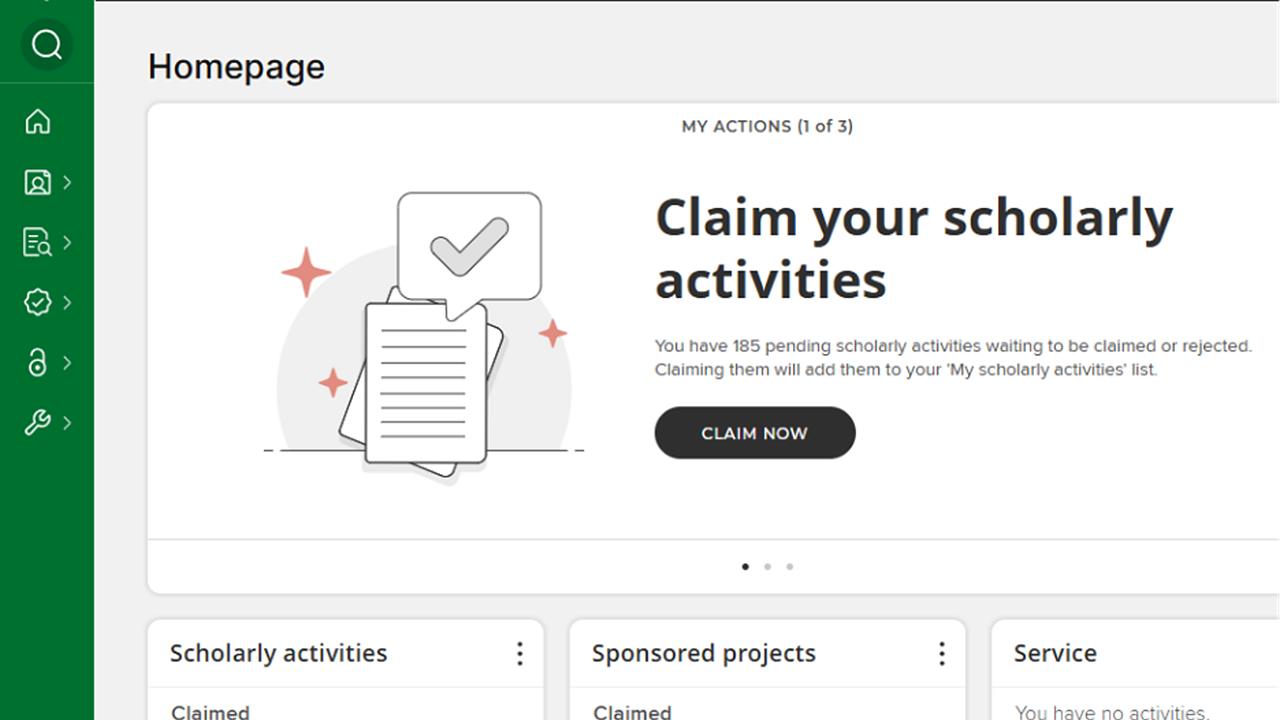
If you already have claimed scholarly activities, you may wish to check and verify that they have been correctly attributed to you.
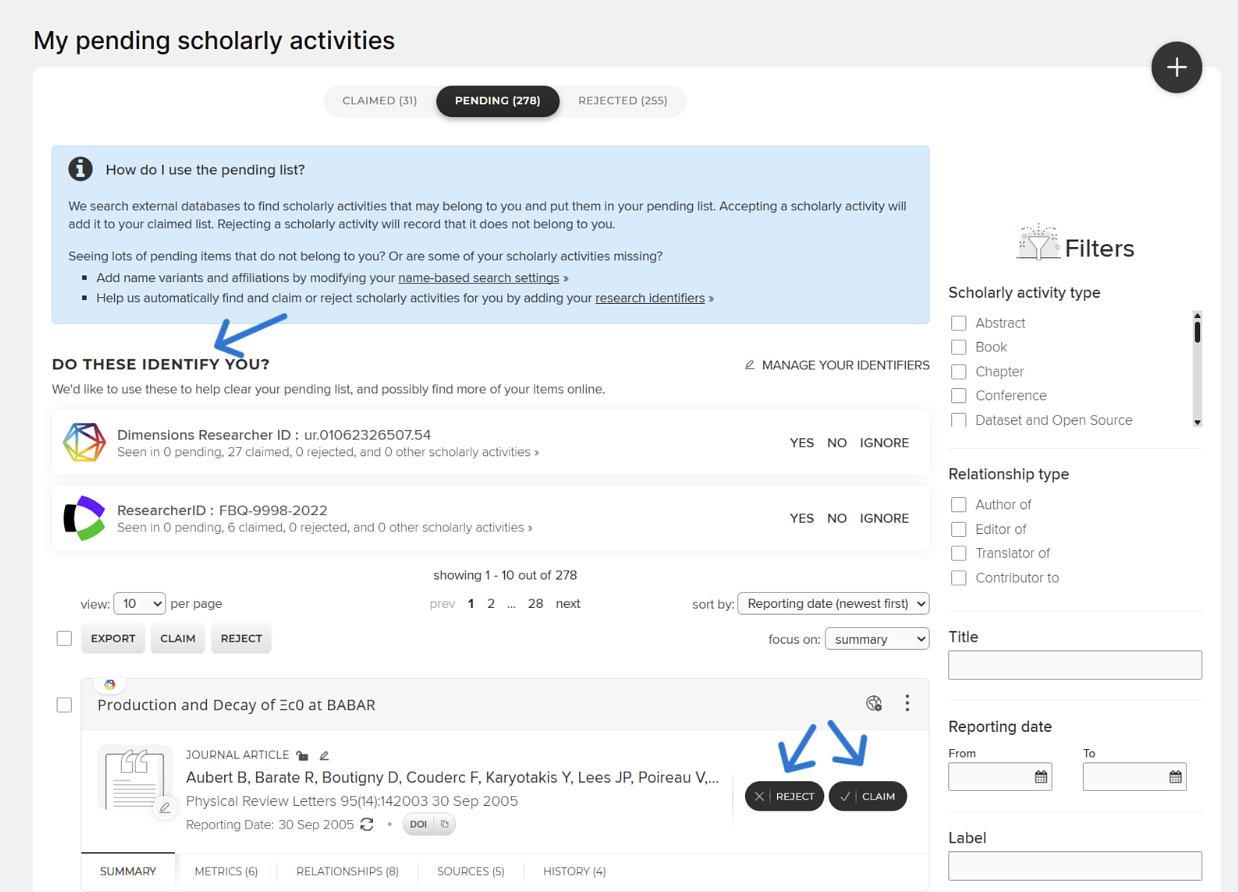
In the “Pending” section, you will see scholarly activities that the system has associated with your name or other identifiers. You should review these activities and either claim or reject them.
You may also see some suggested research identifiers (e.g. Dimensions Researcher ID) at the top of the page. Claiming or rejecting these identifiers can help you with auto claiming or rejecting scholarly activities (see Automatic Claiming of Scholarly Work for more information).
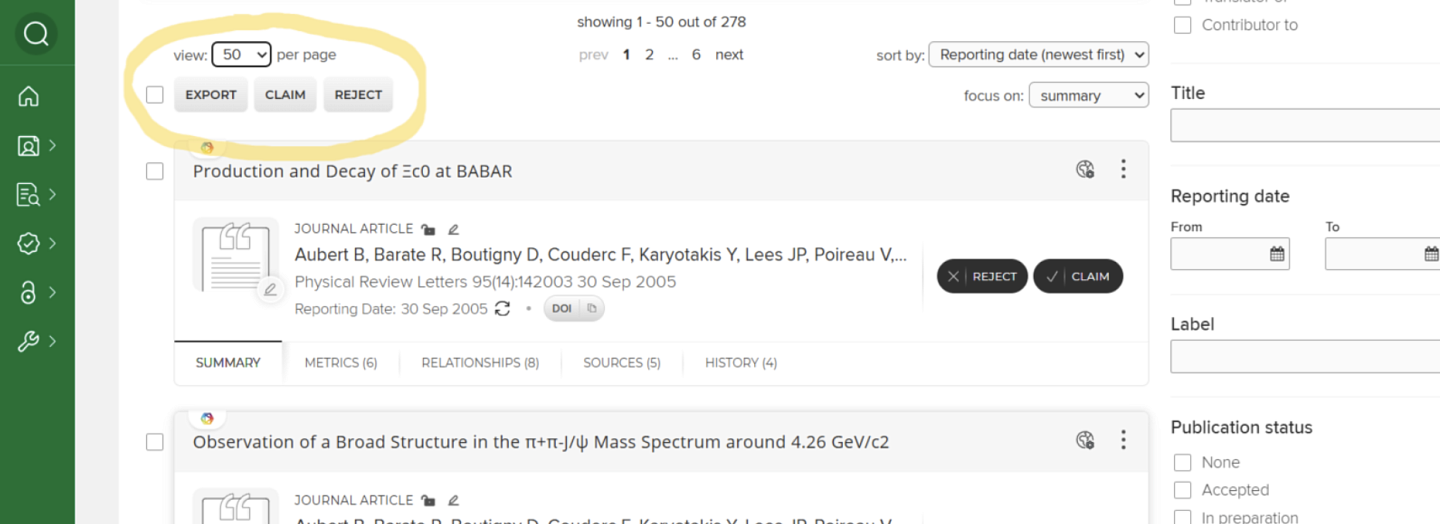
You can “bulk” claim or reject scholarly activities by checking all or multiple entries and using the “claim” or “reject” options at the top. You can also change how many entries per page you want to view and filter entries using the tools in the “Filters” panel on the right.
WATCH a general video on Editing Your Scholarly Activities.
Adding a manual record to a Scholarly Activity from an external data source and then editing it:
- Click on the three dots at the right-hand corner of the record you wish to edit and select “View Details.”
- Click the “Plus” sign to “Add Manual Record”
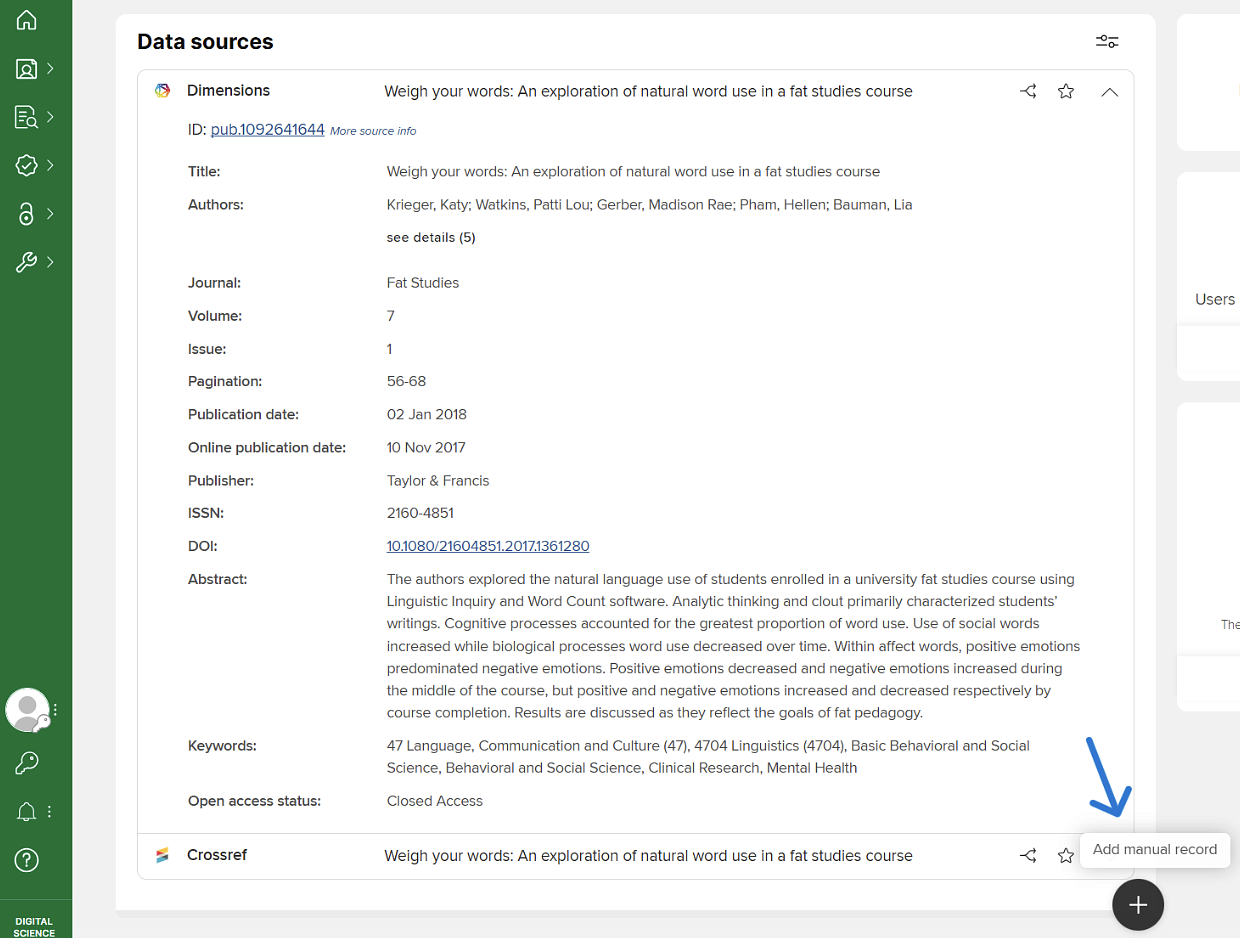
This will open a window to let you add additional information.
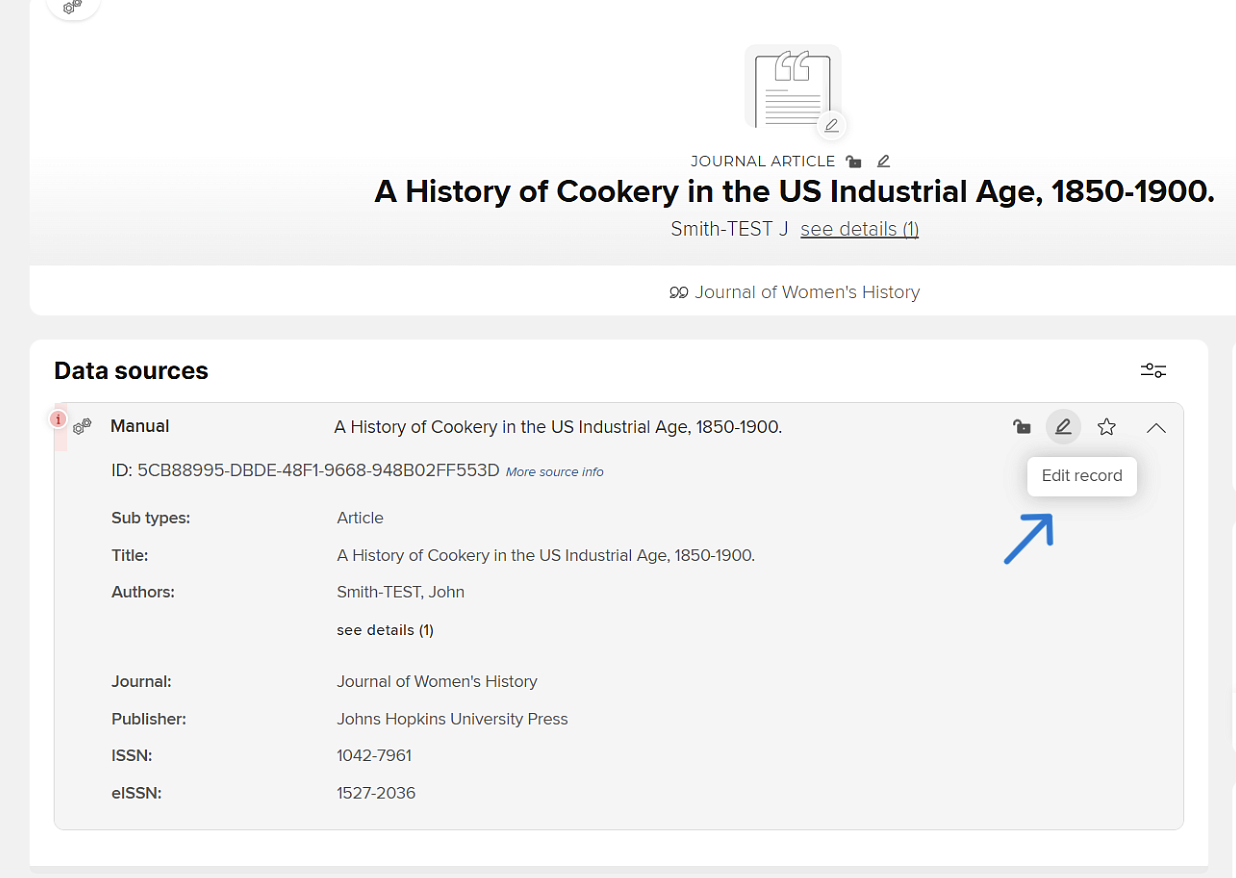
Editing a scholarly activity that was manually entered:
- Click on the three dots at the right-hand corner of the record you wish to edit and select “View Details.”
Then click on the pencil symbol in the top right corner to edit.
WATCH a general video on Adding Your Scholarly Activities.
Once you have claimed/rejected all pending scholarly activities in your profile, you may need to add activities from your CV that were not automatically imported into Elements by external data sources.
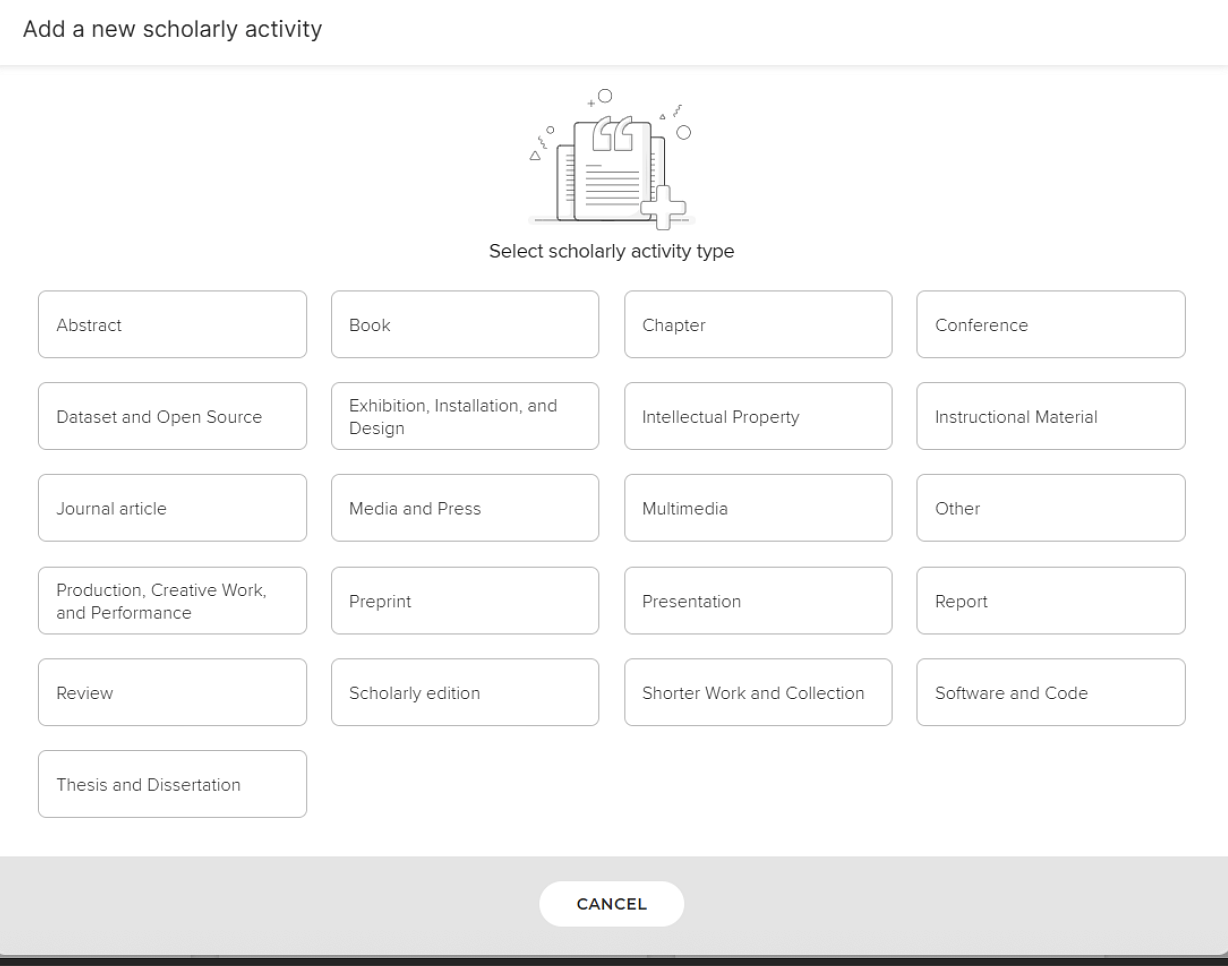
- Go to the Scholarly activities box, select +ADD NEW and select the scholarly activity type you wish to add.
- Please refer to the guidance information above if you need help determining which scholarly activity type to choose.
- You will see a field that will ask you to enter TITLE or ISBN (books), DOI (journal articles, conferences).
- If your search yields the scholarly activity, claim it.
- If it doesn’t, you will have to enter it manually.
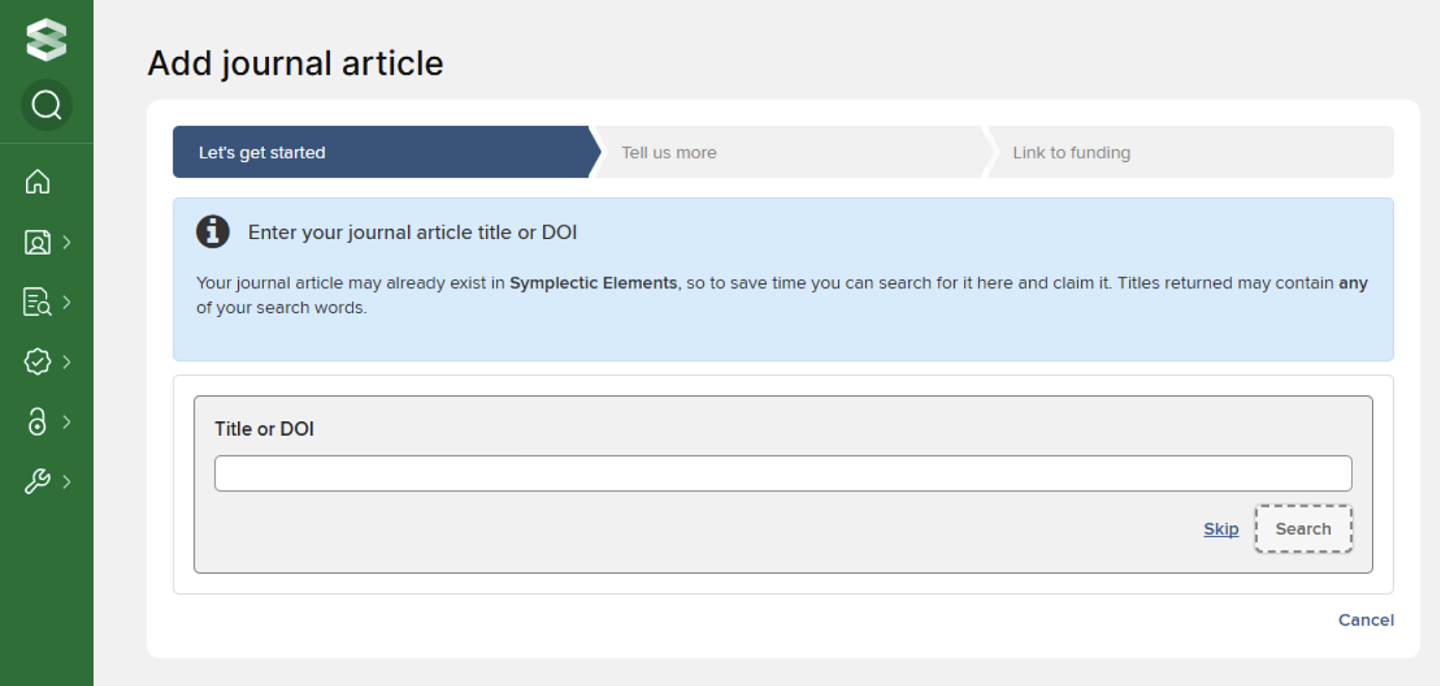
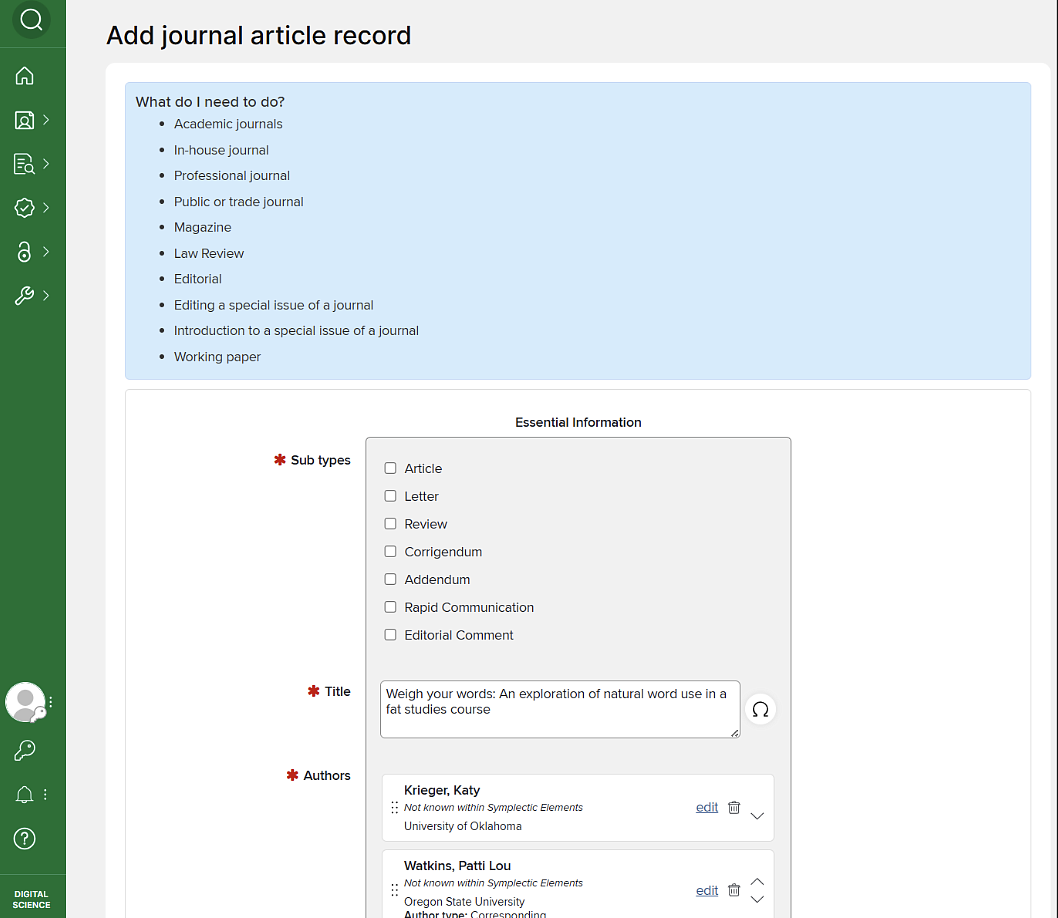
Manually entering a scholarly activity: select +ADD NEW and select scholarly activity type. Below the Title field, select Skip; this will let you manually enter a scholarly activity. Enter as much information as is available (you will see mandatory fields marked with a red asterisk); click SAVE.
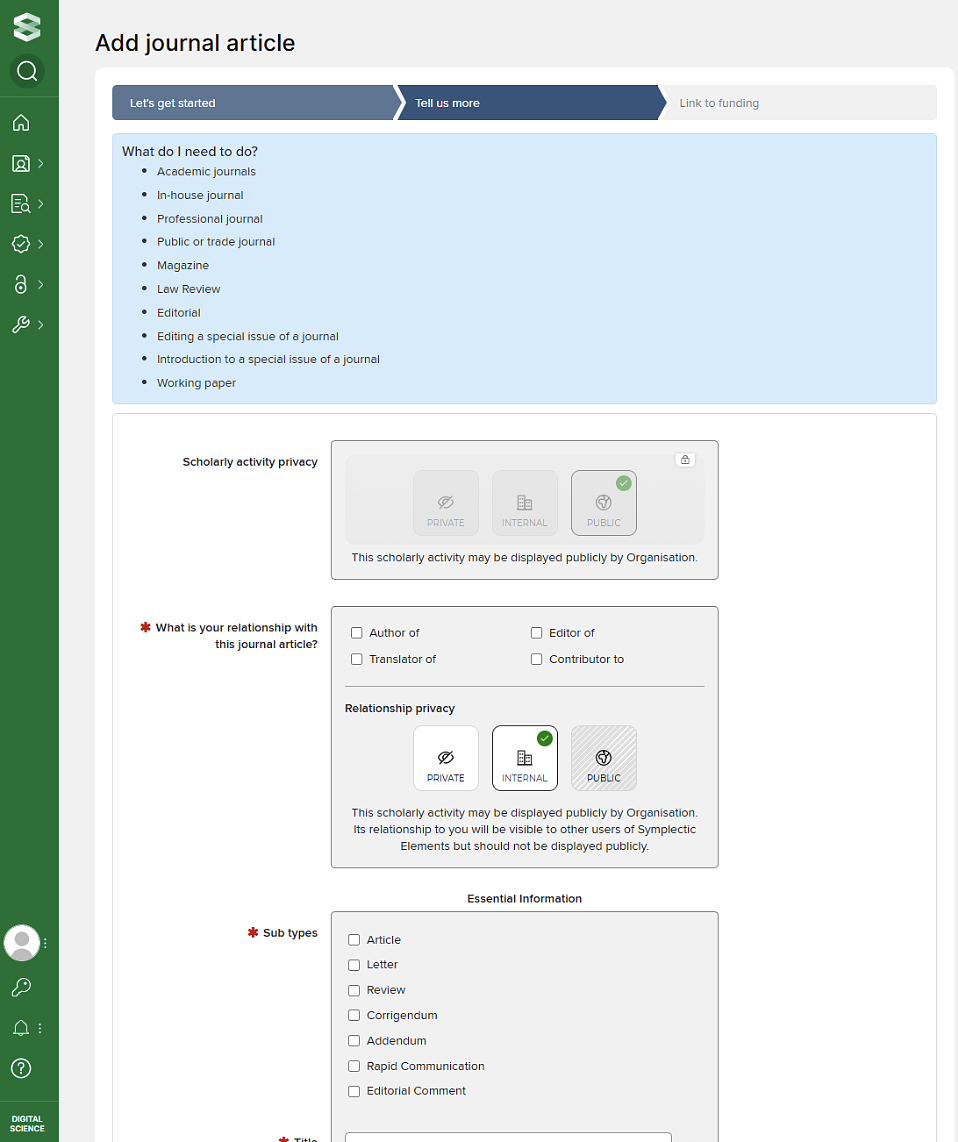
Chapters: First try searching by book title; it is more likely that the book title will be found. If the book is found in Elements, it will auto-populate a lot of information.
Changing/Correcting a Record: Click on the title of the record to display details, then click on the pencil symbol to edit.
Changing Scholarly Activity Type: If you accidentally entered the incorrect type (e.g. Media and Press vs. Multimedia), you can go back to the record and edit it. Click on the pencil symbol next to where the record shows the type and change it.
- Click on the three dots at the right-hand corner of the record you wish to edit and select “View Details.”
- Click the “Plus” sign to “Add Manual Record”
This will open a window to let you add additional information.
Editing a scholarly activity that was manually entered:
- Click on the three dots at the right-hand corner of the record you wish to edit and select “View Details.”
- Then click on the pencil symbol in the top right corner to edit.
Watch an example video of how to combine two activity entries in the Elements workspace.
Start by reviewing your scholarly activity. You can select the "Scholarly Activity" tile, "View all", or select the activity type (e.g., "journal articles"). Review the duplicate or redundant entries. These are likely to happen if you imported your activity content from a CV, did some manual data entry, or the names of the activity are similar but not quite an exact match.
Right click on the three vertical dots (skewer menu) to the right of each entry you need to combine. Select "Add to Workspace". Repeat for each entry you need to combine.
Once you have added your activities to the workspace, navigate to the left-hand menu and select "Profile and Work" (the icon is a person in a box). Scroll slightly down to "Workspace". Once in the workspace, find your two entries and check the faint grey boxes on the left-hand side of each activity title. Once selected, hit the "Join" button. Processing takes a moment.
Verification of combination will show at the top of your screen with a time stamp. You can then hit "view" on your combined entry and see that one entry has been added to the "sources" tab of the activity. For example, you can see that a manual record is now added to the sources tab for a journal article and it will show the databases the journal article was harvested from, too.
Do you have an activity source preference such as PubMed or Dimensions? Use the "star" icon to set your preferred source for an activity. This will change the first source shown to a reviewer to your preferred option.
You can also review combined activities by navigating to your homepage and selecting "Scholarly Activity" tile, "View all", or select the activity type (e.g., "journal articles").
Note: If two entries will not combine, email elementshelp@uoregon.edu.
Importing from Google Scholar and Adding to your Scholarly Activities
You can import items from Google Scholar, Bibliographic Indexing services and Reference Management databases in RIS or BibTeX format. These items are first checked against existing records in Elements, and will become manual records in your claimed (Mine) publications.
To import items:
- Have the RIS or BibTeX file containing your items stored on your computer or network in a location that you can access.
- Log in to Elements and navigate to Profile & Work > Publications > Import Publications.
- Browse for the file you have saved and then click on ‘Upload.’
The system will compare the new publications with your current publications list (including any declined publications) and look for it in other users’ records as well. It will generate a list showing the new publications and any matches found with existing publications. For each publication that matches an existing record, you will be given a range of options.For records that match an existing publication of yours, which has only online database records, you have three choices:
- Choose Just add link to ignore the record when importing. If you are not already linked to the matched publication, a link will be created.
- Choose Import as new to create a new publication based on the data from your file.
- Choose Skip to ignore the record completely.
For records that match an existing publication of yours, which does have a manual source, you have four choices:
- Choose Just add link to ignore the record when importing. If you are not already linked to the matched publication, a link will be created.
- Choose Import as new to create a new publication based on the data from your file.
- Choose Supplement existing to add a manual record to the matched publication, using data from your file. If you are not already linked to the matched publication, a link will be created.
- Choose Skip to ignore the record completely.
Exporting from Elements to Upload to Google Scholar
Data within Elements can be exported in the following formats:
- BibTeX format (for MathSciNet and other reference management services)
- RIS (Research Information Systems) format, for Reference Manager, EndNote and other reference management programs
- PDF, suitable for print
- RTF, suitable for MS Word and other text-based programs
- CSV, for Excel and databases